
Transcript:
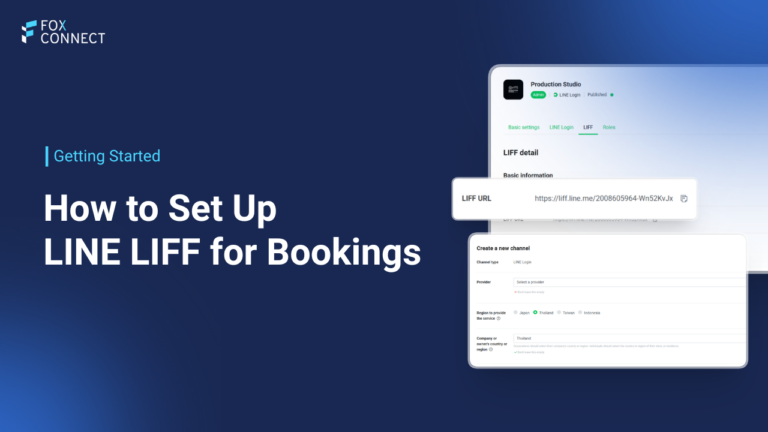
In Fox Connect, go to settings, then click on channels tab, and then on add channel. Select Connect Line OA account. All of the fields you see here need to be filled in in order for Fox Connect booking system to work. So let’s walk you through all the steps to get all information.
First of all, go to Line OA manager website. After logging in with your Line account, you will see this page. Click on settings, then click on Messaging API in the left menu, then click on Enable Messaging API. In the popup that appears, create a new provider. Name it as you wish. Enter links for your privacy policy and terms of use, or skip for now if you do not have this set up yet. Check the info again and confirm by clicking okay.
Now open another browser tab and go to Line Developers website. Login with your Line account and click on the provider name that you just set up previously, which should now be visible here. Click on your Line OA account. Under Basic settings, copy the channel ID and copy it into your Fox Connect account. Also, enter your Line OA name here.
To get your channel secret, scroll down in Basic settings and copy it from here and paste it into Fox Connect. To get your Access token, you need to go to the Messaging API tab, scroll to the end, and click on Issue. Then copy the token and paste it back into Fox Connect. Finally, to get your bot basic ID, copy it from the top of the Messaging API tab and paste it here. Then save everything. You will notice that a few new fields have been added. The final step you have to do is to go back to the Messaging API tab, scroll down to Webhook URL, and click on Verify. Plsu. Switch on the toggle next to Use Webhook. Your line channel is now fully set up.